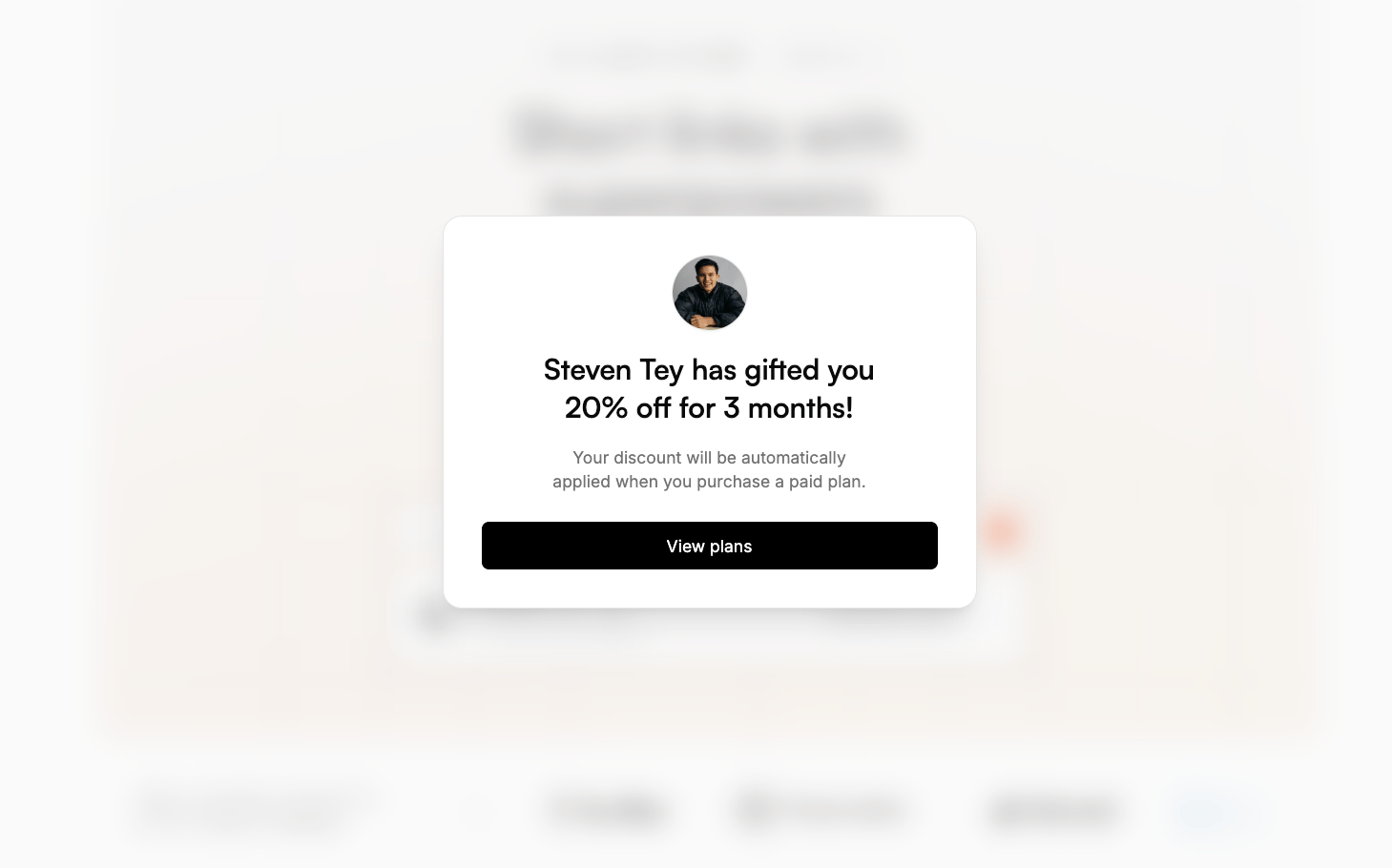
- 25% discount for the first 12 months
- 30% lifetime discount
- $50 one-off discount
Stripe coupons / promotion codes
There are two ways to set up dual-sided incentives if you’re using Stripe:Option 1: Direct link-based discounts (recommended)
If you’re using Stripe for payments, you can follow these steps to set up direct link-based discounts for your partner referral links:Link-based discounts provide better attribution accuracy since you get
visibility into the customer’s geolocation, device info, referrer details, and
UTM data.The trade-off here is that it requires some engineering work to set up.
1
Create a discount on Dub
First, navigate to the partner group that you want to create a discount for. Under the Discount tab, you’ll be able to create a discount for the group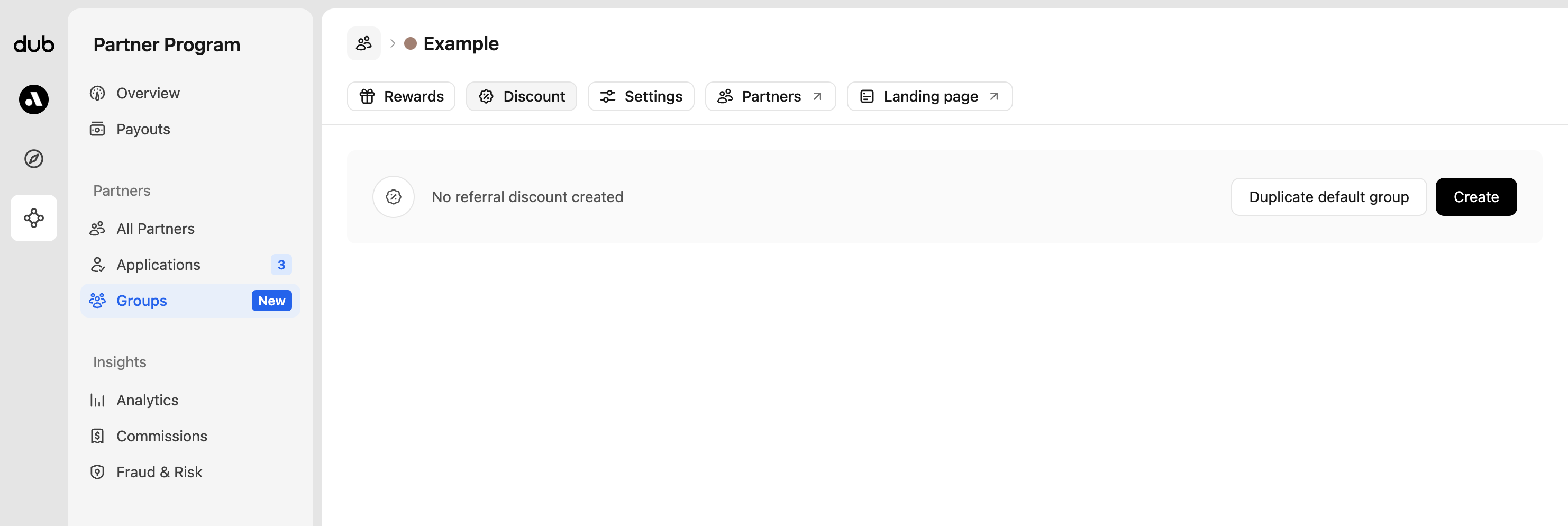 If you already have a discount set up for your default group, you can just duplicate it. If not, click Create to create your first group discount: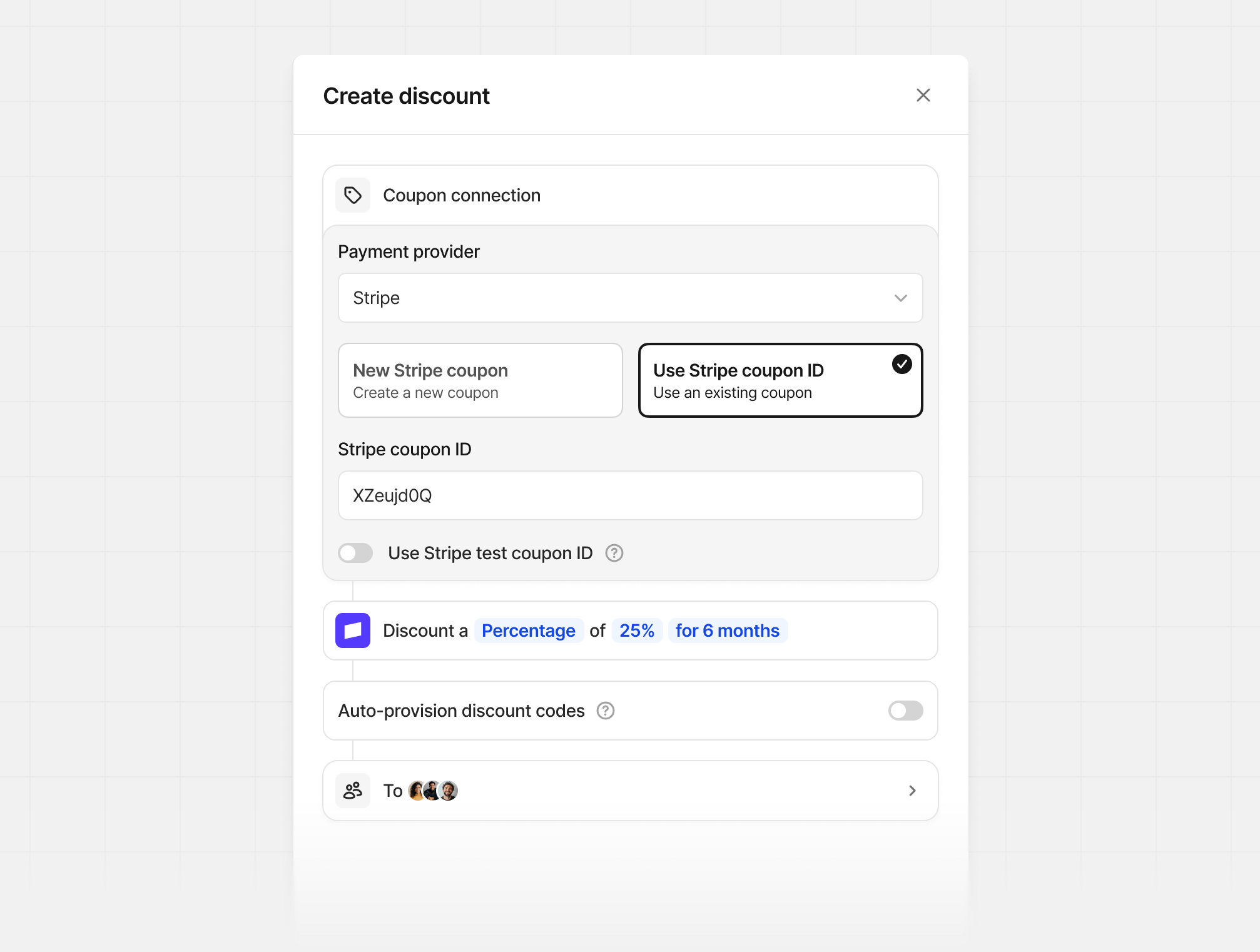
2
Add coupon logic to checkout flow
The key to implementing link-based discounts is to check if a customer is eligible for a discount using Dub’s Customers API, then automatically apply the appropriate Stripe coupon to their checkout session.Here’s how the flow works:Once this is set up, eligible customers will automatically see the coupon code applied at checkout:
- When a user clicks a partner referral link, Dub tracks them as a potential customer
- During checkout, you query the Dub Customers API using the user’s ID
- If they’re eligible for a discount, you apply the coupon to their Stripe checkout session
- If not, you allow them to enter promotion codes manually
Option 2: Using Stripe promo codes (no code required)
If you prefer a no-code solution, you can set up Stripe promo-code-based discounts for your partners.Stripe promo-code-based discounts is much easier to set up (no code required).However, you do sacrifice on attribution accuracy since you won’t have any
insights into the customer’s geolocation, device info, referrer details, and
UTM data. Our Stripe integration will try to derive the customer’s location
based on their Stripe billing address, but it can sometimes be inaccurate.
1
Create a discount on Dub
First, navigate to the partner group that you want to create a discount for. Under the Discount tab, you’ll be able to create a discount for the groupIf you already have a discount set up for your default group, you can just duplicate it. If not, click Create to create your first group discount:
2
Create your partner code
Open the partner profile that you’d like to create a discount code for, then click Create Code in the “Discount codes” section.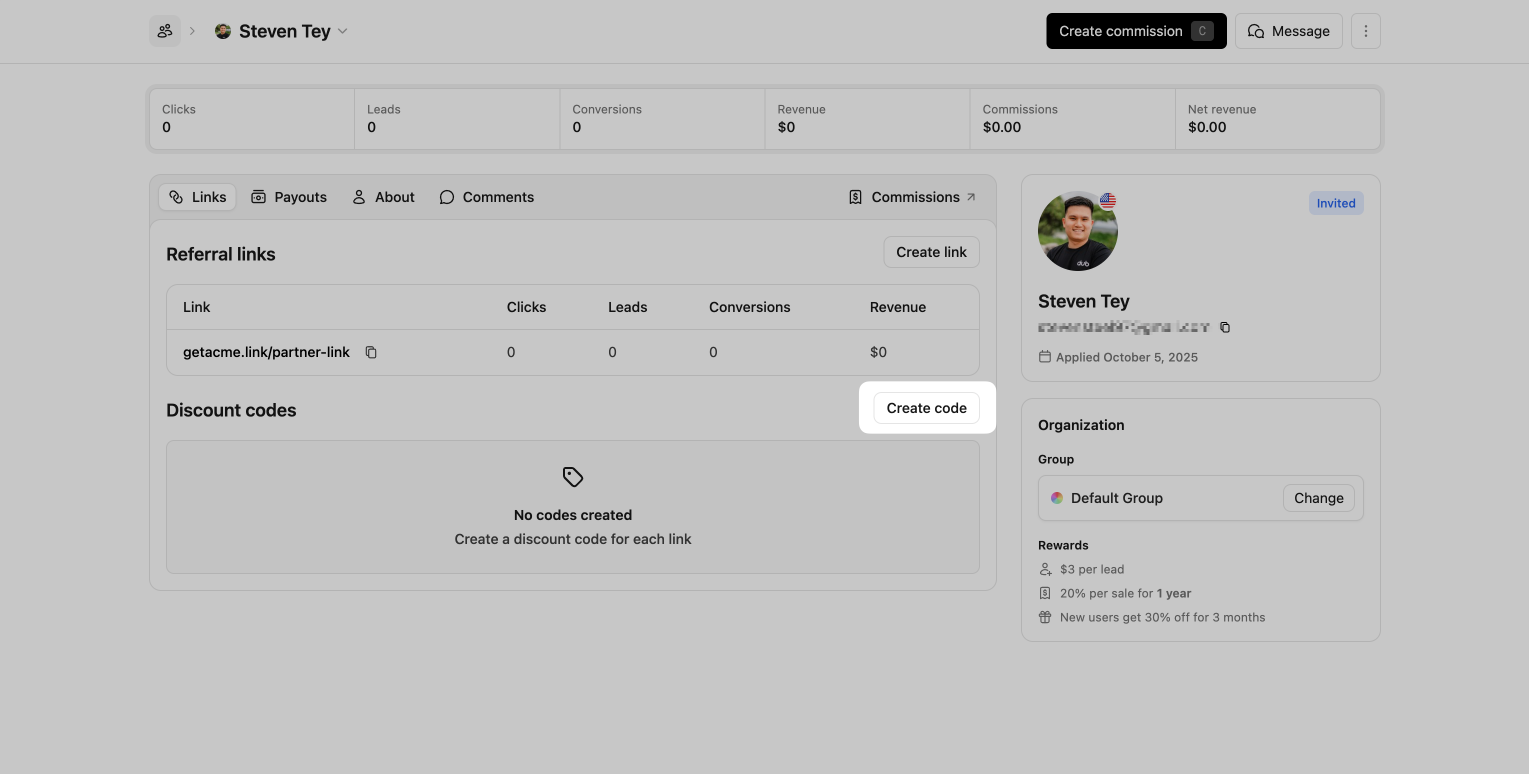 Here you can select which referral link you’d like to associate the code with. Then you can create the discount code.
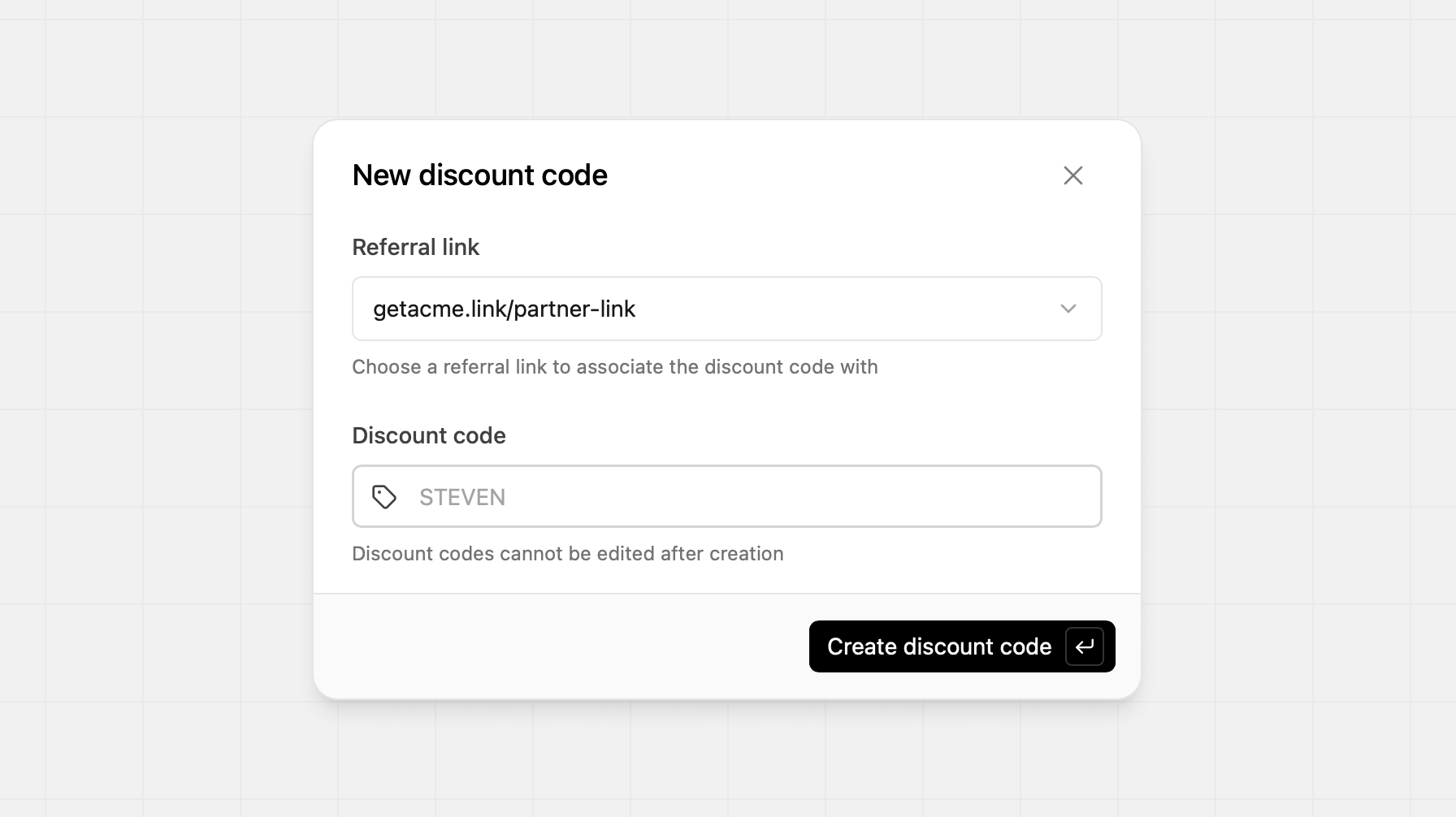 After the code has been created, you’ll see its value populated in the Discount Code section, and it is ready for use. In the Partner Dashboard, they’ll also see the associated discount code within their partner links.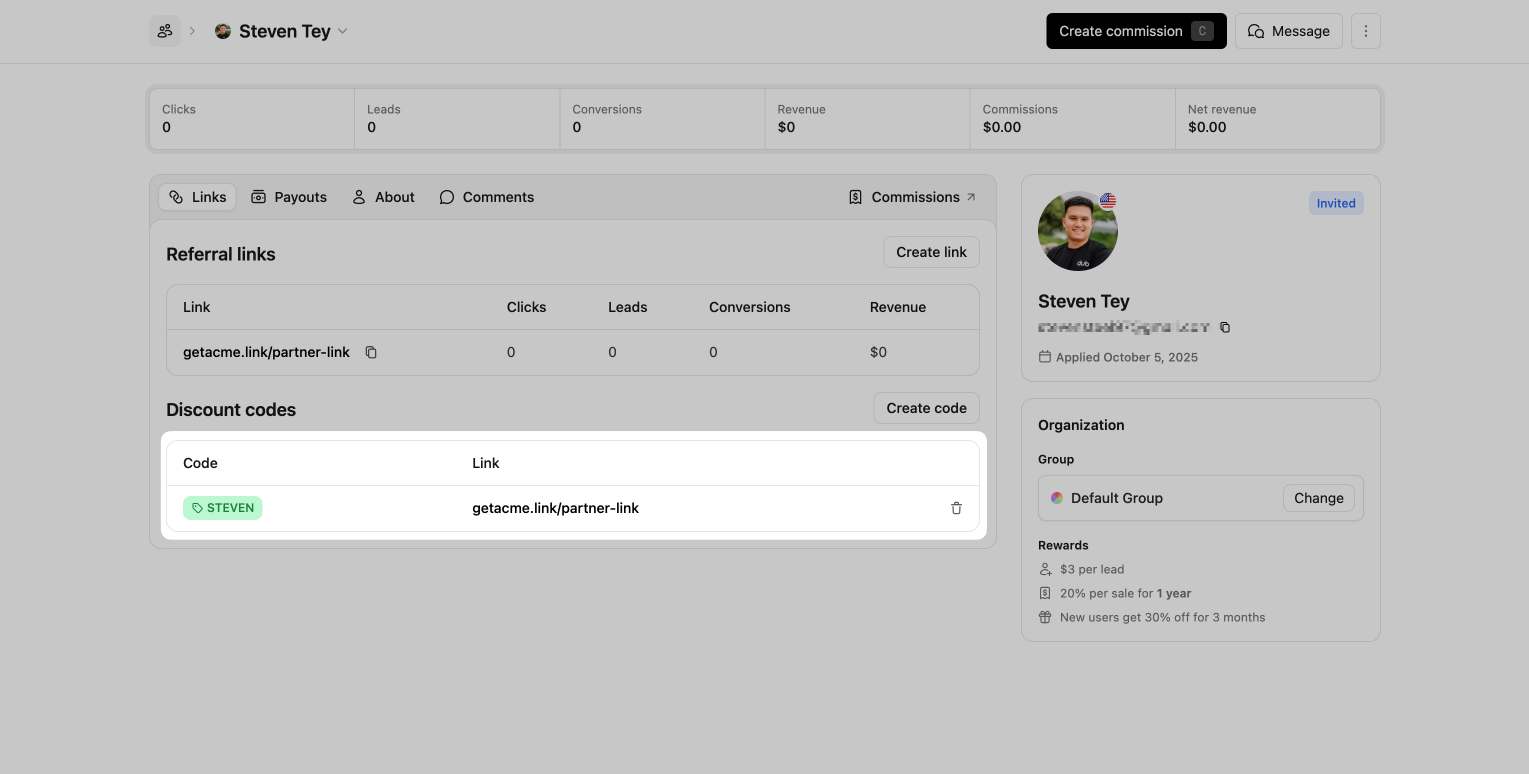
Shopify discount codes
Use the Shopify discount provider when you sell through Shopify. Dub creates partner discount codes in your store automatically, and attributes the sale when a customer applies a partner’s code at checkout — even if they didn’t click a referral link.This requires the Dub Shopify app. Dub creates
and deletes discount codes in your Shopify store automatically.
1
Connect the Dub Shopify app
Install the Dub Shopify App and connect it to your Dub workspace. Follow the Shopify integration guide if you haven’t already.
write_discounts). If you installed it before this permission was added, reinstall or upgrade the app from the Shopify App Store.2
Create a Shopify discount on Dub
First, navigate to the partner group that you want to create a discount for. Under the Discount tab, you’ll be able to create a discount for the group.If you already have a discount set up for your default group, you can just duplicate it. If not, click Create to create your first group discount: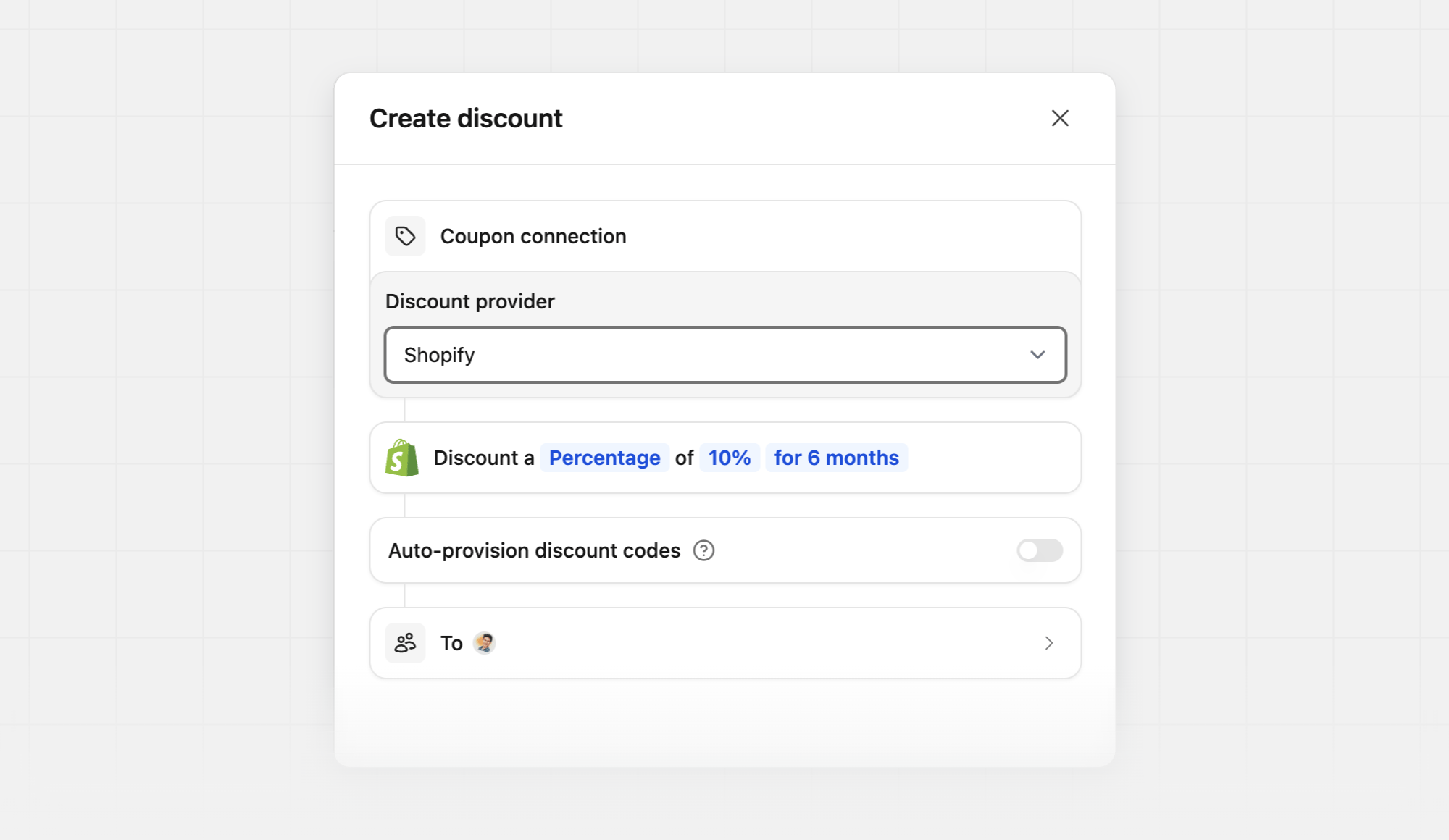
3
Create partner discount codes
Open the partner profile that you’d like to create a discount code for, then click Create Code in the Discount codes section.Select which referral link you’d like to associate the code with, then create the discount code. If you omit a custom code, Dub generates one from the partner’s name.Dub immediately creates a matching code in your Shopify store. Shopify codes created by Dub:
- Apply to all products
- Can be used once per customer
- Work on one-time purchases and subscriptions
- Use your discount duration as Shopify subscription billing cycles (one-time → first cycle, a set number of months → that many cycles, lifetime → applies indefinitely)
Custom discount provider
Use the Custom discount provider when you manage promo codes in your own system (eg: WooCommerce, Squarespace, etc.) instead of Stripe or Shopify. Dub remains the source of truth for partner discounts and discount codes; your application creates and disables the matching codes by listening to webhooks.1
Create a custom discount on Dub
First, navigate to the partner group that you want to create a discount for. Under the Discount tab, you’ll be able to create a discount for the group.If you already have a discount set up for your default group, you can just duplicate it. If not, click Create to create your first group discount: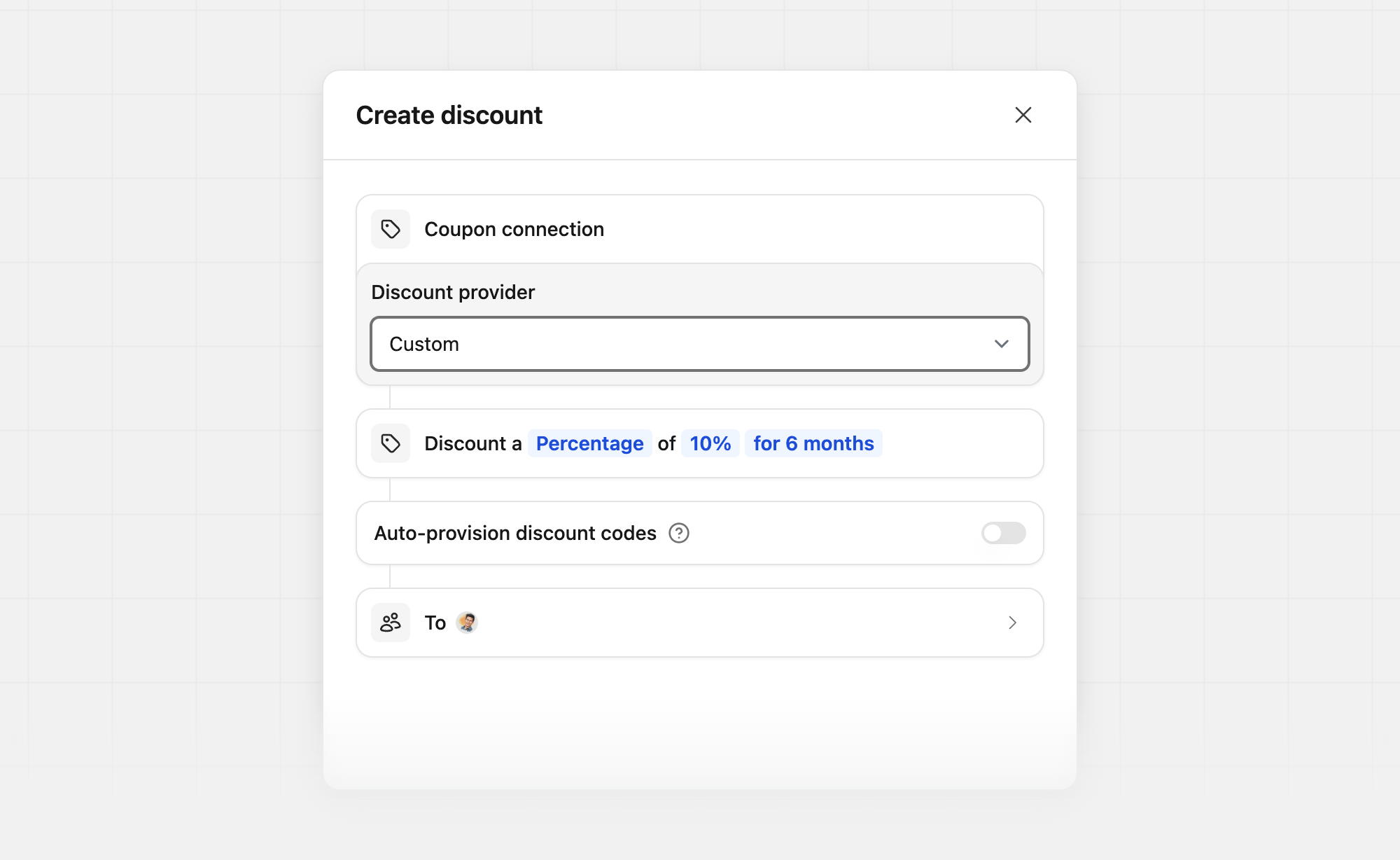
2
Create partner discount codes
Open the partner profile that you’d like to create a discount code for, then click Create Code in the Discount codes section.Select which referral link you’d like to associate the code with, then create the discount code. If you omit a custom code, Dub generates one from the partner’s name.
3
Sync codes with your system
Create a webhook subscribed to
discount_code.created and discount_code.deleted.Your endpoint should:- Verify the webhook signature
- On
discount_code.created, create the matching promo code in your system usingdata.codeand the nesteddiscount(amount, type, duration) - On
discount_code.deleted, disable or delete that promo code in your system - Return a 2xx status code on success
Auto-provision discount codes
When enabled, discount codes will be automatically created for all existing partners in this group and future partners when they join this group.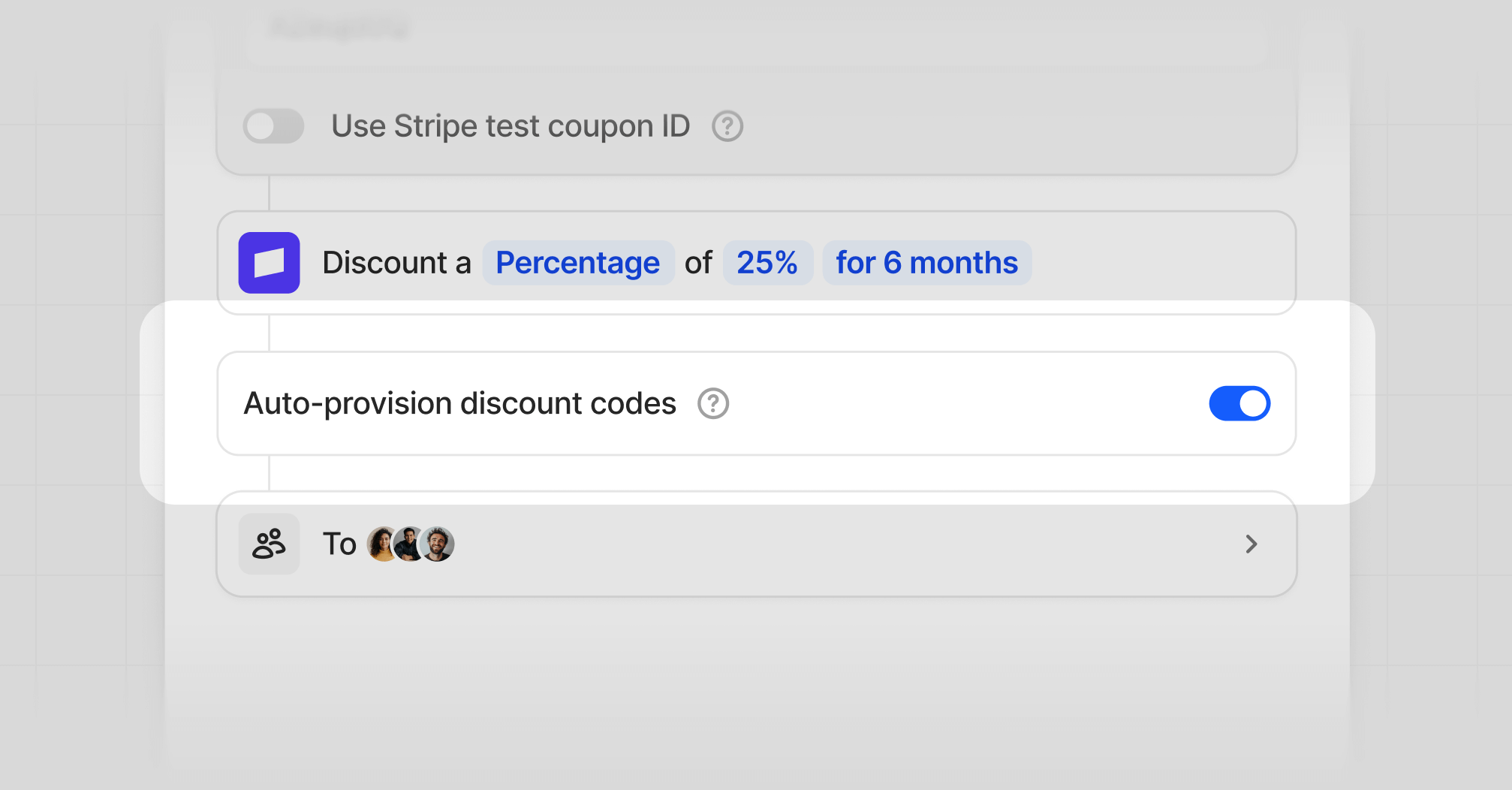
Displaying discount banner
Once you’ve set up dual-sided incentives, a potential next step would be to display the discount information on your pricing page / landing page hero. To do that, all you need is to install the Dub Analytics script with client-side click-tracking enabled – then, when someone lands on your site via a valid referral link, the script will automatically fetch the partner and discount data for you. This data will be stored as a JSON-stringified object in thedub_partner_data cookie in the following format:
useAnalytics() hook. If you’re working in a non-React environment, you can use the DubAnalytics object directly.
Here is a quick example of how you can display a discount banner using the useAnalytics() hook: