> ## Documentation Index
> Fetch the complete documentation index at: https://dub-stripe-first-time-order-setting.mintlify.site/llms.txt
> Use this file to discover all available pages before exploring further.
# Setting up a bank account for partner payouts
> Start paying out your program partners using your bank account (direct debit via ACH, SEPA, or PADS).
This feature is only available on [Business plans and
above](https://dub.co/pricing/partners).
With [Dub Partners](/help/article/dub-partners), you can [send payouts](/help/article/partner-payouts) to your affiliates using your credit card on file. However, for larger payouts, it might be more cost-efficient to set up your bank account for direct debit instead.
Depending on your bank's country, we support 3 different types of direct debit methods:
* **US**: Automated Clearing House (ACH)
* **Canada**: Automated Clearing Settlement System (ACSS)
* **Europe**: Single Euro Payments Area (SEPA)
Due to the fraud/dispute risks involved with SEPA direct debit, it is
currently only available on [Enterprise](https://dub.co/enterprise) plans.
## Connecting your bank account to Dub
Here's how you can connect your bank account to Dub for partner payouts:
Go to your [payment methods section in your billing tab](https://app.dub.co/settings/billing#payment-methods) and click on the **Connect** button to add a new direct debit method:
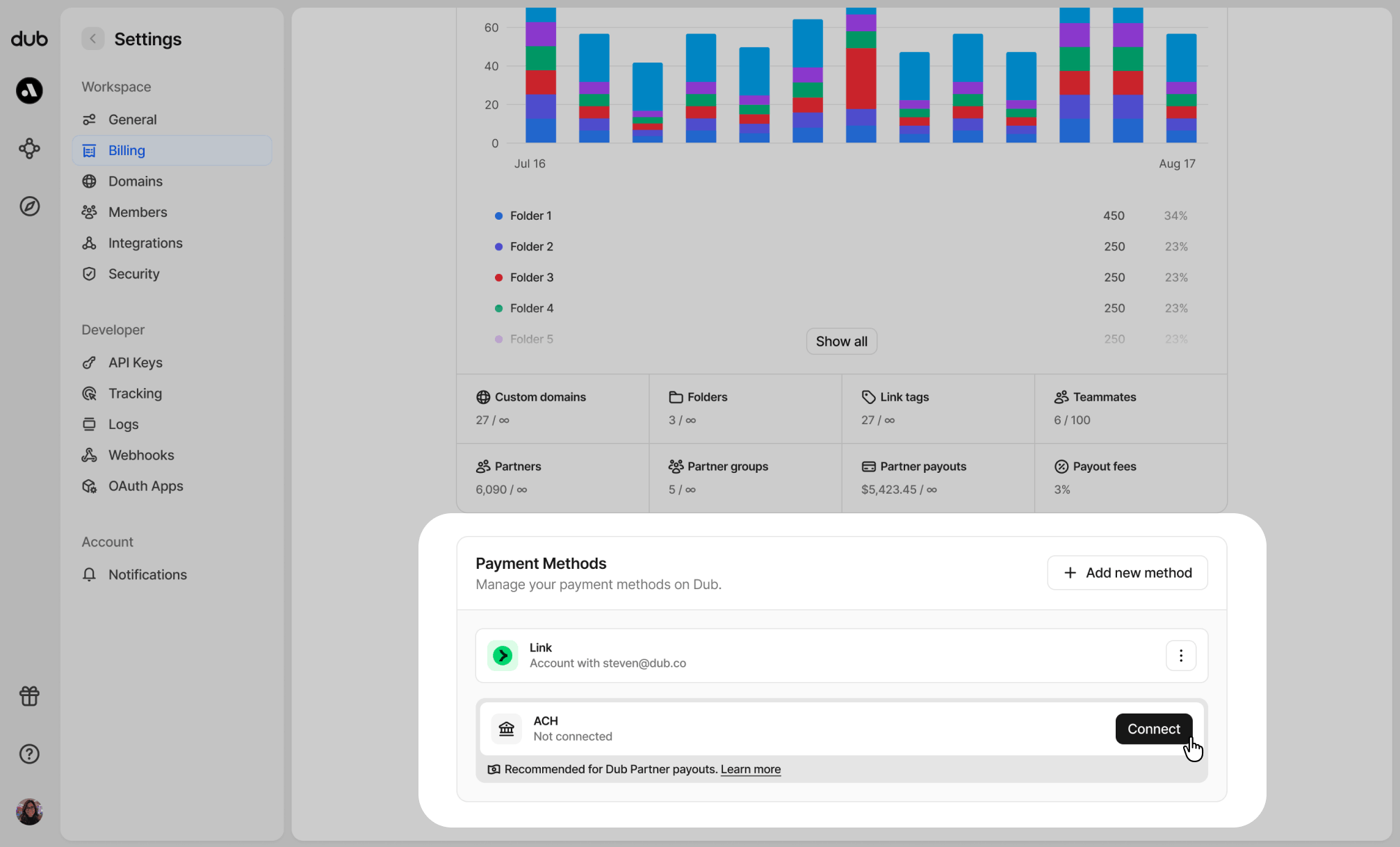 This will open up a modal with the following direct debit methods:
* **US**: Automated Clearing House (ACH)
* **Canada**: Automated Clearing Settlement System (ACSS)
* **Europe**: Single Euro Payments Area (SEPA)
This will open up a modal with the following direct debit methods:
* **US**: Automated Clearing House (ACH)
* **Canada**: Automated Clearing Settlement System (ACSS)
* **Europe**: Single Euro Payments Area (SEPA)
 Select the correct method based on your bank's location, and you'll be redirected to the Stripe connection flow.
Next, search for your bank that you want to connect to Dub:
Select the correct method based on your bank's location, and you'll be redirected to the Stripe connection flow.
Next, search for your bank that you want to connect to Dub:
 Search for your bank, and follow the steps to connect your account.
 If you selected SEPA direct debit in the previous step, you will need to manually enter your IBAN number and account details to set it up instead:
 ## Manual bank verification
Alternatively, you can also manually verify your bank account via the [micro-deposits verification method](https://stripe.com/ie/resources/more/what-is-micro-deposit-verification-here-is-how-it-works).
To do that, follow [step one in bank connection steps](#add-new-direct-debit-method), then select the **Enter bank details manually** option:
## Manual bank verification
Alternatively, you can also manually verify your bank account via the [micro-deposits verification method](https://stripe.com/ie/resources/more/what-is-micro-deposit-verification-here-is-how-it-works).
To do that, follow [step one in bank connection steps](#add-new-direct-debit-method), then select the **Enter bank details manually** option:
 Then, enter your bank details (routing number, account number):
 You'll receive a micro deposit in your account within 1-2 business days that will include a six-character descriptor code starting with `SM`:
```
SMXXXX
```
Once you receive the micro-deposit, click `Verify` on the added bank account record on your billing settings page. This will open a verification modal.
You'll receive a micro deposit in your account within 1-2 business days that will include a six-character descriptor code starting with `SM`:
```
SMXXXX
```
Once you receive the micro-deposit, click `Verify` on the added bank account record on your billing settings page. This will open a verification modal.
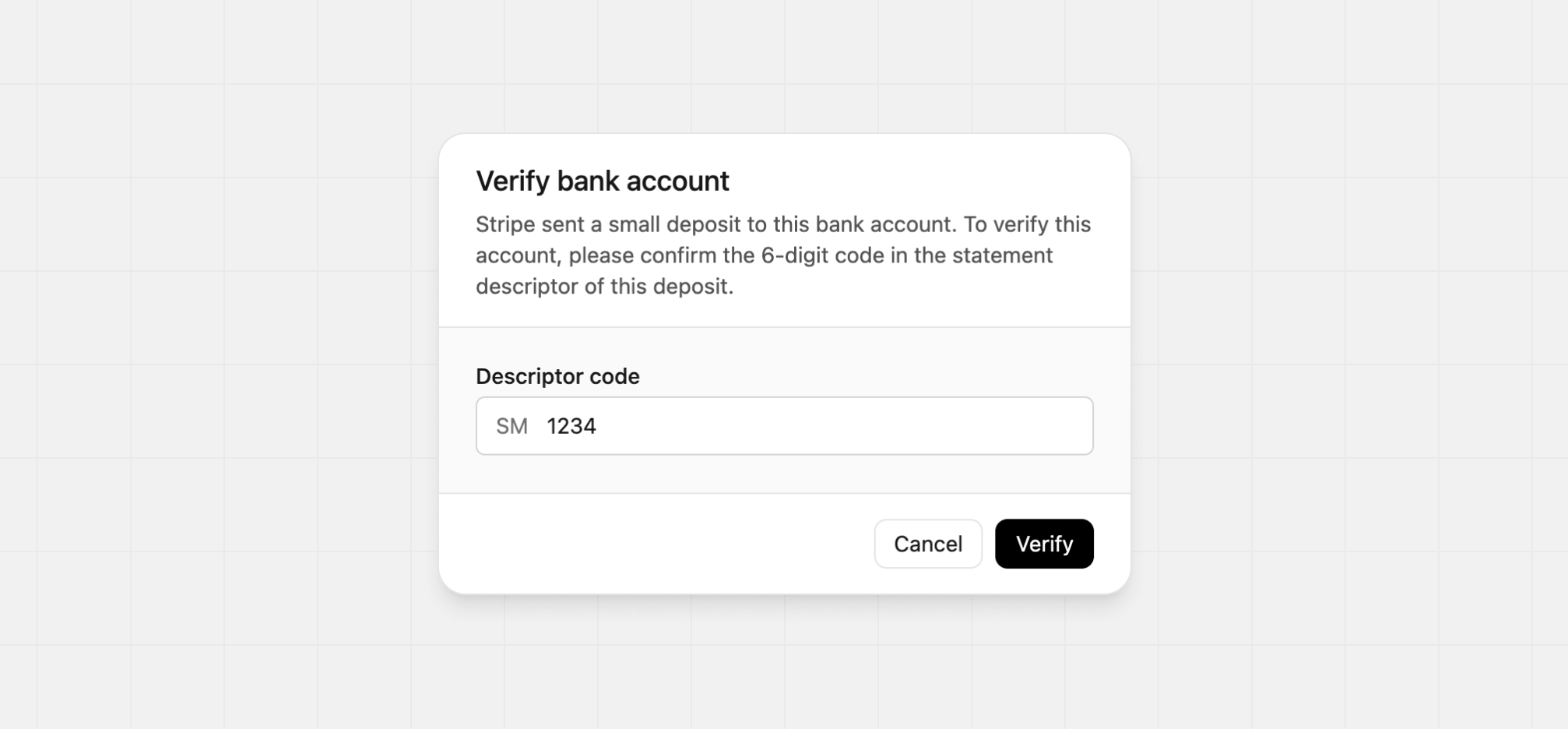
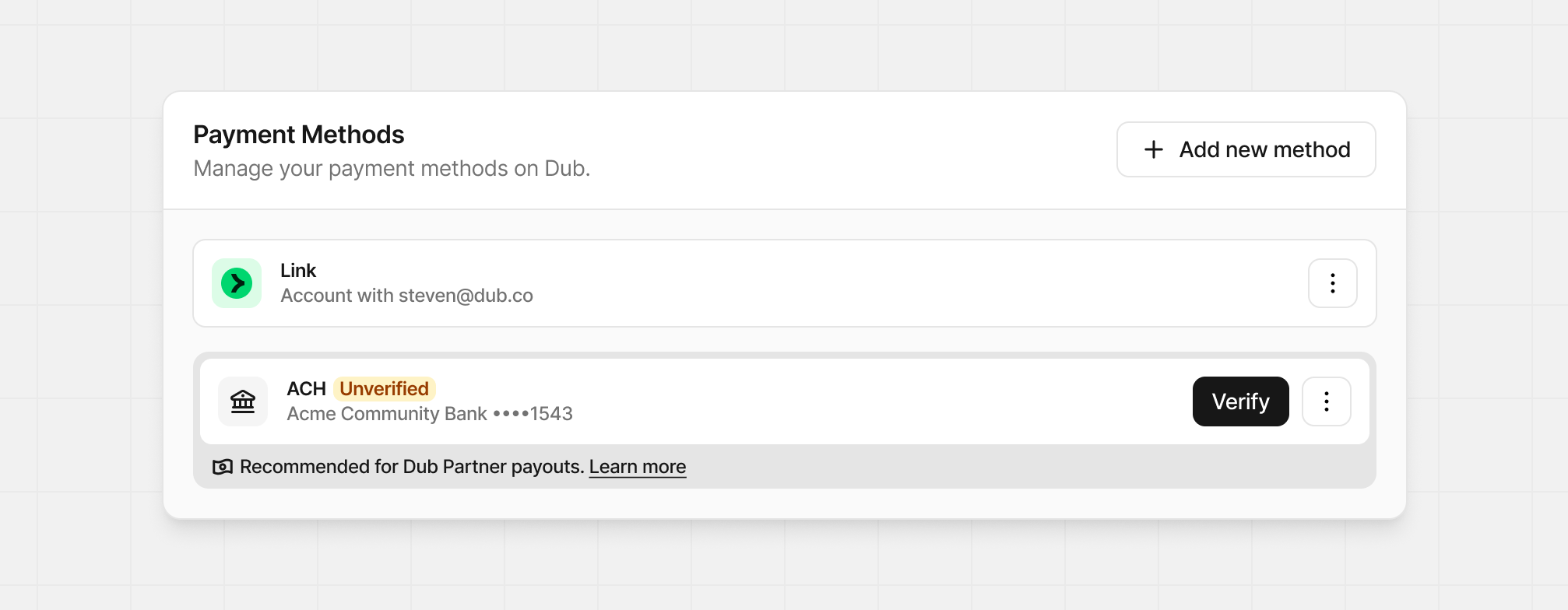 With the bank account verification modal open, enter the 6-digit code in the statement descriptor of the deposit you received from Dub, then click `Verify`.
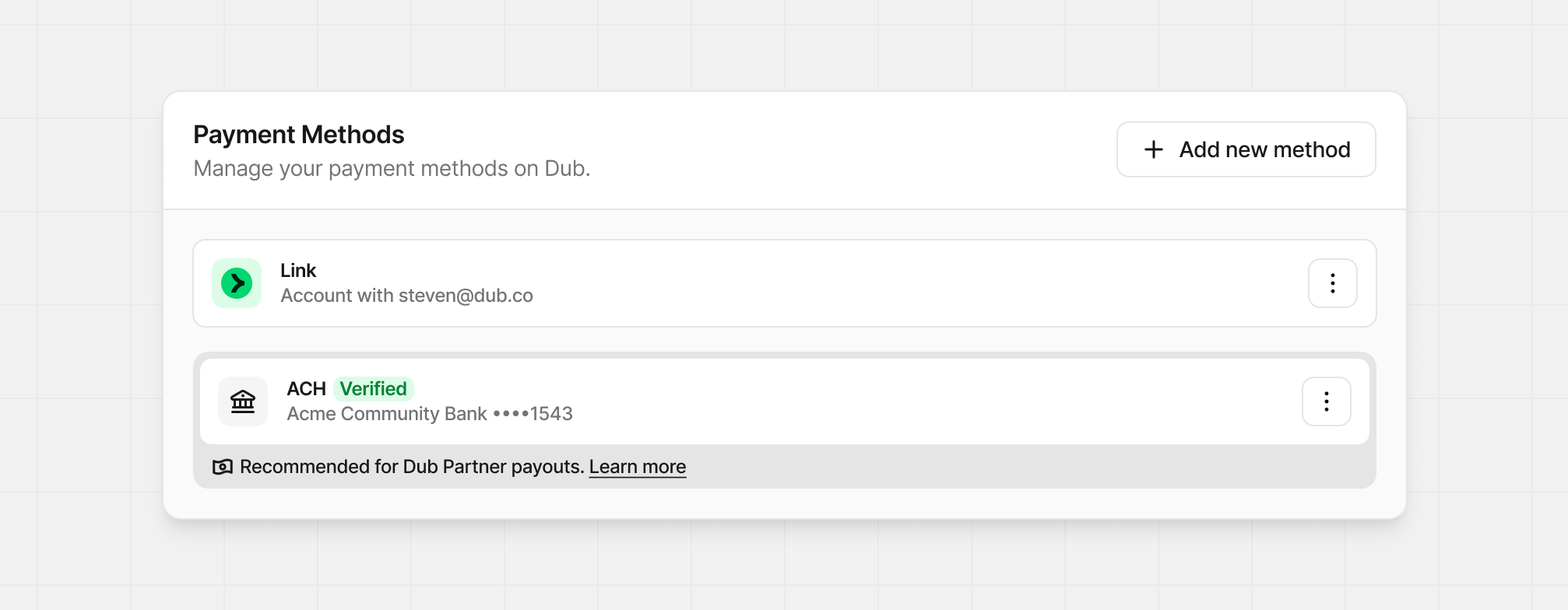
 When your bank account is verified and ready for use, you'll see the `Verified` on your bank account payment method.
 ## My bank account is currently unavailable
Depending on which bank you select, Stripe might show an error that the bank is currently unavailable:
## My bank account is currently unavailable
Depending on which bank you select, Stripe might show an error that the bank is currently unavailable:
 If that happens, follow the instructions above to [manually verify your bank account](/help/article/how-to-set-up-bank-account/#manual-bank-verification).